Keeping it simple – Line breaks in PowerShell
Trying to get your code to look good when reading it later can be tricky
For line breaks in function scripts, there are two out-of-the-box options:
First, you can break a line after the pipe key, which is an elegant and easy-to-read approach.
Second, you can arbitrarily break a line with a back tick mark, which you will find left of the number 1 on a standard US keyboard.
**It looks like this: ** But did you know that the back tick is a hack? The back tick means, “literally interpret the next character,” or also said, escape the following character.”
For example, you might want to literally reference a quotation mark “ in a path name, but because it’s inside “” for strings, you need to literally interpret it: “”PATH”” – it’s hard to see, but squint.
But here’s another takeaway: if you use the back tick to create a line break, make sure there’s no space after it; otherwise, the space – not the carriage return – will be the escaped, literal character!
So here’s are some examples of what works and what doesn’t:
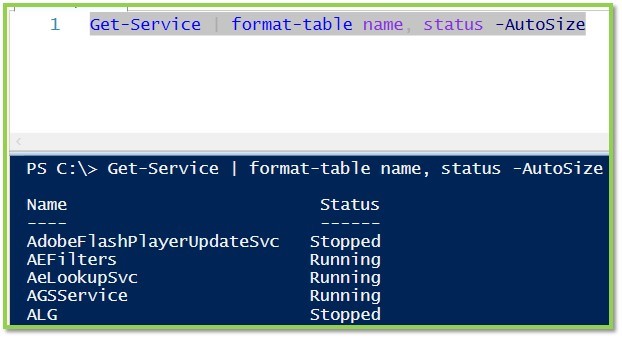
First, no line breaks - works like a charm, but if we add a few more pipes and parameters this could get ugly.
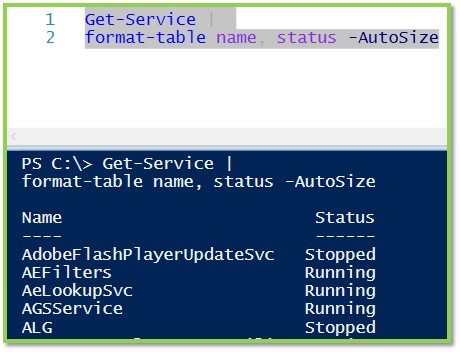
Next we have an example with a line break after the pipe, also functioning normally
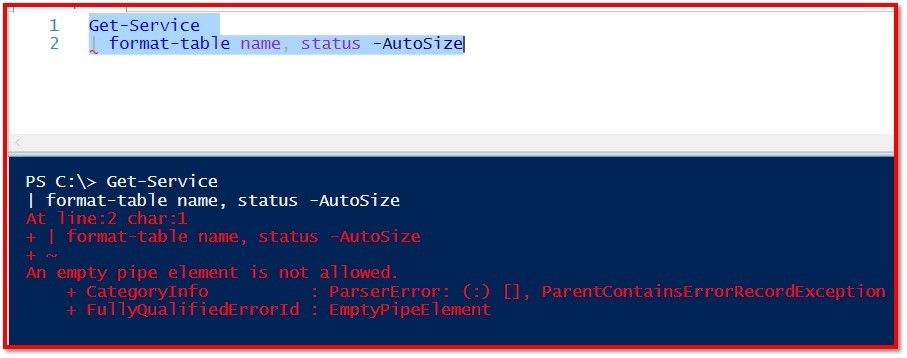
Here we see the line break before the pipe, and the script fails
In this sample we use the tick immediately followed by a return. If we wanted to we could insert these ticks numerous times, before each parameter, for example
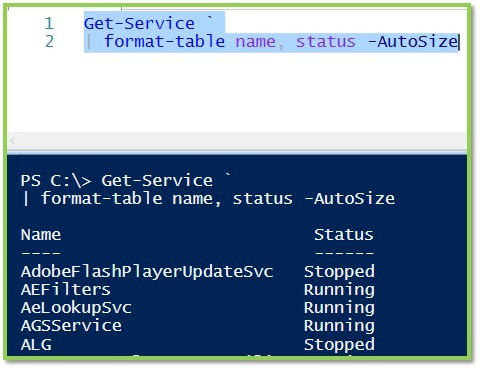
Finally we see the effect of using the back tick AND A SPACE before the carriage return - this one is tricky to find when troubleshooting, so don’t let it happen to you!
A special thanks to Sarah Wischmeyer for the introductory comments on this one!
Keep your scripts snappy!
Related Articles
PowerShell Escape Room
PowerShell Escape Room by Michiel Hamers
by Michiel Hamers
https://about.me/michielhamers/
Why on earth you want to create an Escape Room with PowerShell as backend?
I’ve always been a fan of escape rooms, so I decided to create my own for my kids. I wanted to make it something that would be challenging and fun for them, but also educational. I decided to use PowerShell as the backend for the escape room, as I’m a PowerShell developer and I thought it would be a great way to learn more about the language.
The first step was to design the rooms. I wanted to make sure that there were a variety of puzzles and challenges that my kids would have to solve. I also wanted to make sure that the rooms were visually appealing and engaging. Once I had the rooms designed, I started building them.
I used a variety of materials to build the rooms, including wood, cardboard, and fabric. I also used a few electronic components, such as a USB extension cable with a switch and a 3-button keyboard. The USB extension cable with a switch was used to create a physical button that my kids could press to solve one of the puzzles. The 3-button keyboard was used to enter the code that my kids had to find to solve another puzzle.
I also used a few websites to create rebus puzzles that my kids had to solve. I printed out the rebus puzzles and placed them around the rooms. Once my kids had solved all of the puzzles, they were able to enter the code on a single screen to escape the room.
In this blog post, we’ll delve into the process of creating an engaging PowerShell escape room for the global PowerShell community. We’ll emphasize the significance of storytelling and provide a detailed breakdown of the PowerShell structure used for the escape room.
Microsoft Graph PowerShell Module: Getting Started Guide
by Jeff Brown
Microsoft is retiring the Azure AD Graph API sometime after June 30, 2023 (announcement). This retirement includes the Azure AD PowerShell module. In its place, Microsoft has released the Microsoft Graph PowerShell module. The Microsoft Graph PowerShell module is the next-generation way of managing Microsoft cloud services using PowerShell. If you have used MSOnline or Azure AD PowerShell in the past, you’ll need to read on to learn about this new module.
ICYMI: PowerShell Week of 08-October-2021
Topics include VMWare, Windows 11, Web Reports and more…
Special thanks to Robin Dadswell, Prasoon Karunan V, Kiran Patnayakuni and Kevin Laux
How to gather your vCenter inventory data with this VMware PowerShell script
by Scott Matteson on 7th October
Inventory reports are a common request when administering a VMware vCenter environment. Learn how this VMware PowerShell script can make such requests quick and easy
Building a Web Report in PowerShell, use the -Force Luke
by Chris Noring on 8th October


